Preferences
Click the gear icon in the sidebar footer to open Preferences. Its subtitle says it: "Stored in this browser. Other browsers and devices keep their own." There is no Save button; every change applies at once.
Since 1.3.0. The settings live in your browser's local storage; nothing is sent to the server.
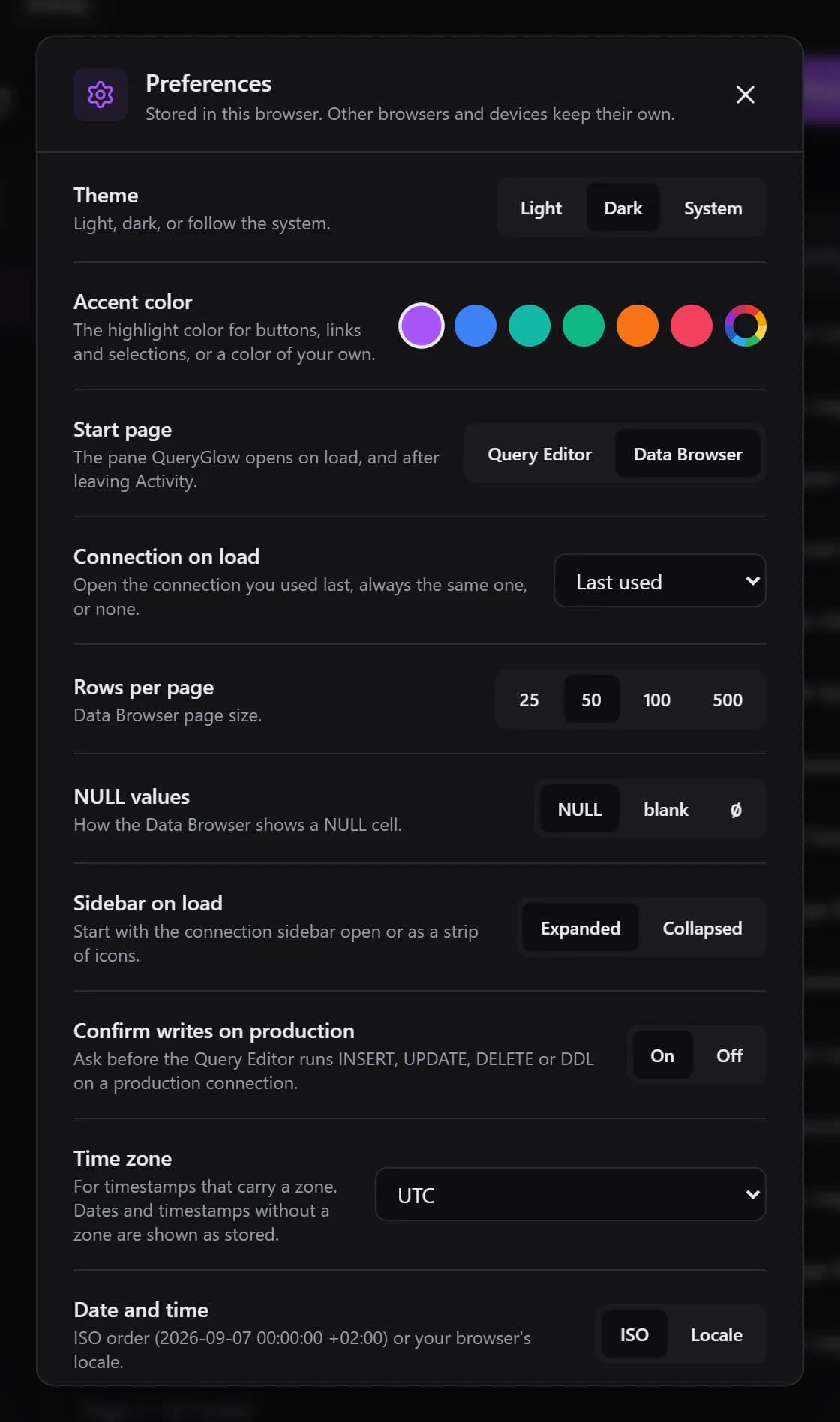
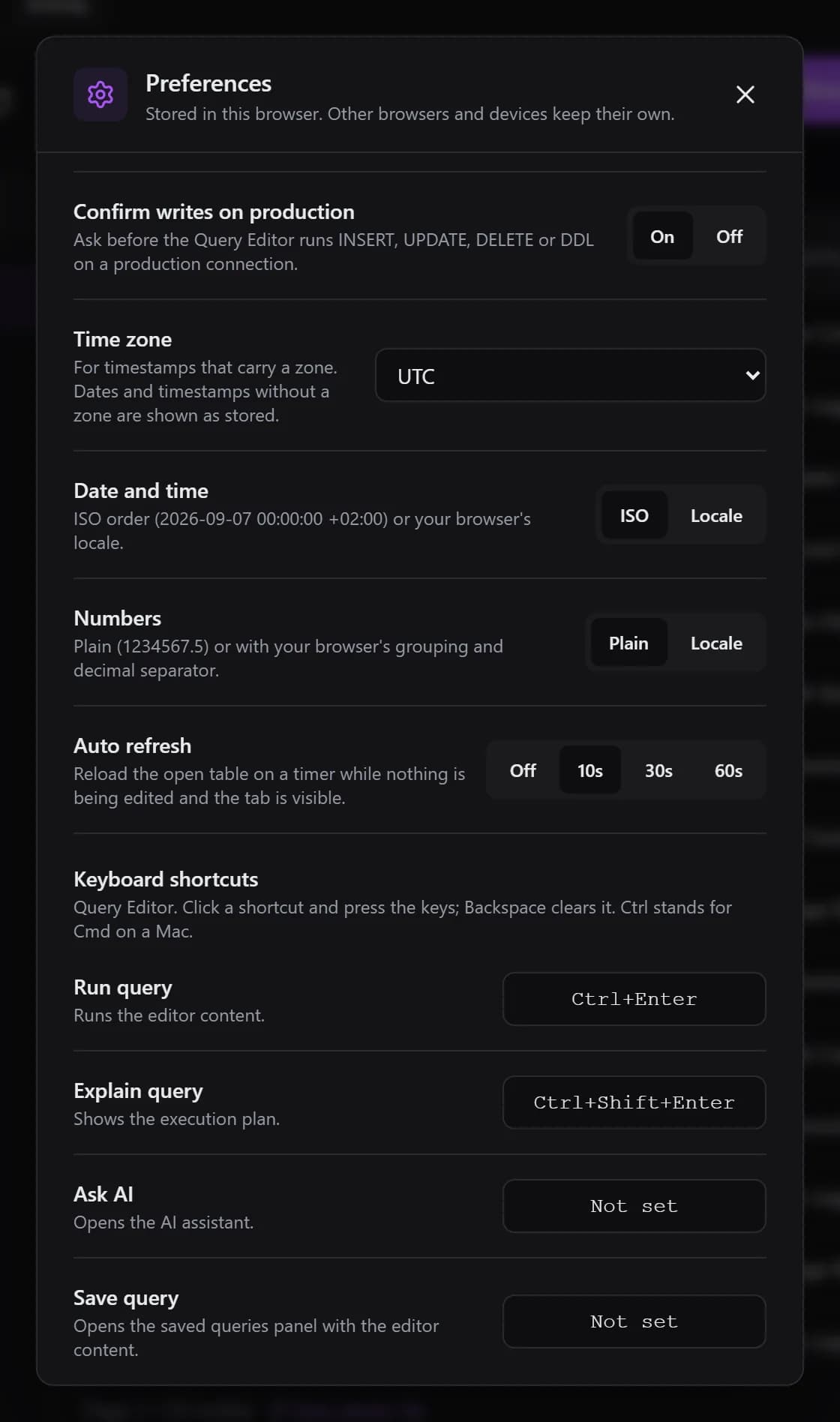
Every Setting, Its Options and Its Default
| Setting | Options | Default | Notes |
|---|---|---|---|
| Theme | Light, Dark, System | Dark | System follows your operating system. |
| Accent color | Purple, Blue, Teal, Green, Orange, Rose, Custom | Purple | Custom opens your device’s color picker; a hex field appears once a custom color is active. |
| Start page | Query Editor, Data Browser | Query Editor | Also the pane you return to when you pick a connection while Activity is open. |
| Connection on load | Last used, None, or Always open with a connection by name | Last used | The Data Browser also reopens the table you last had open on that connection. |
| Rows per page | 25, 50, 100, 500 | 50 | Page size of the Data Browser. |
| NULL values | NULL, blank, ∅ | NULL | Hovering a NULL cell always shows NULL. Applies to the Data Browser. |
| Sidebar on load | Expanded, Collapsed | Expanded | Collapsed shows a strip of icons. |
| Confirm writes on production | On, Off | On | Ask before the Query Editor runs INSERT, UPDATE, DELETE or DDL on a production connection. |
| Time zone | Browser (your zone), or any zone your browser lists | Browser | Only timestamps that carry a zone are converted. |
| Date and time | ISO, Locale | ISO | ISO example: 2026-09-07 00:00:00 +02:00 |
| Numbers | Plain, Locale | Plain | Plain example: 1234567.5 |
| Auto refresh | Off, 10s, 30s, 60s | Off | Reloads the open table in the Data Browser. |
Rows per page and auto refresh act on the Data Browser; Confirm writes on production is explained under Environments.
Accent Color
"The highlight color for buttons, links and selections, or a color of your own." Six presets, plus a seventh color wheel swatch, Custom, that opens your device's color picker. Once a custom color is active, a hex field appears for an exact value. QueryGlow derives the lighter and darker shades from that one color and applies them before the first paint.
- Purple
#a855f7 - Blue
#3b82f6 - Teal
#14b8a6 - Green
#10b981 - Orange
#f97316 - Rose
#f43f5e
The accent is one setting per browser, not per connection. One way to use it: a different color in the browser profile you use for each client.
Time Zone, Dates and Numbers
- Display only. The stored value stays in the inline edit, the long value editor, the filters and the exports, and a formatted cell shows it on hover.
- Time zone converts timestamps that carry a zone: PostgreSQL
timestamptz, MySQL and MariaDBTIMESTAMP.timestamp,DATETIMEand dates are shown as stored. The QueryGlow server process runs in UTC. - Date and time: ISO order or your browser's locale. A zoned timestamp always shows its offset or zone name.
- Numbers: plain, or with your browser's grouping and decimal separator. PostgreSQL DECIMAL, NUMERIC and BIGINT and MySQL DECIMAL reach the browser as text and are shown as stored.
Auto Refresh
With 10, 30 or 60 seconds, the Data Browser reloads the open table on that timer, at the current page, sort, search and filters. A note next to the page number reads Auto refresh 30s or Auto refresh paused. It pauses while you edit a cell or a new row, while rows are selected and while a dialog is open, and it skips a tick while the browser tab is hidden. A failed reload keeps the rows on screen and shows a short error. It is polling on a timer, not a live stream.
Keyboard Shortcuts
The Keyboard shortcuts section covers four actions in the Query Editor. Click a shortcut and press the keys; Backspace clears it, the arrow button (Reset to default) restores the default. Ctrl stands for Cmd on a Mac.
| Action | Default |
|---|---|
| Run query | Ctrl+Enter |
| Explain query | Ctrl+Shift+Enter |
| Ask AI | Not set |
| Save query | Not set |
- Keys A to Z, 0 to 9, F1 to F12 and Enter. Letters, digits and Enter need Ctrl or Alt.
- A combination the browser, the editor or the operating system owns (Ctrl+T, Ctrl+F, F5 and others) is refused with a note that names the owner. A combination already used by another action is refused with "Already used by ...".
- Ctrl+Space for autocomplete is fixed.