AI Assistant (Ask AI)
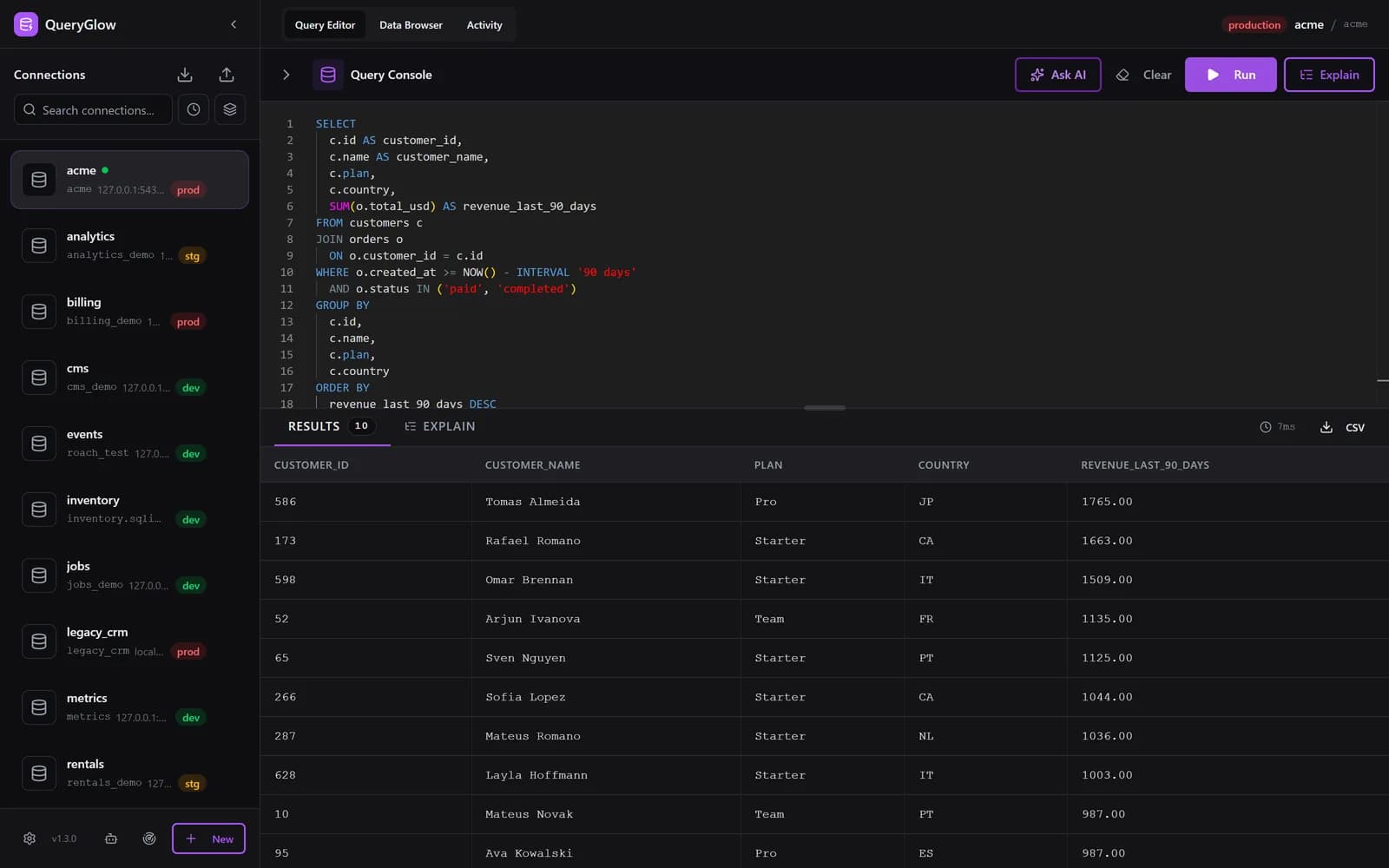
Ask AI turns a plain English request into SQL for your schema and your database's dialect, and puts it into the Query Editor. It does not run it: you review the statement and run it yourself.
Ask AI sends your database type, table and column names with their types, and your prompt. Never rows. It uses your own OpenAI, Anthropic or Google key, entered in the app (stored encrypted on your server) or set in .env. The public demo has AI switched off.
Using Ask AI
- Open the Query Editor and click Ask AI (on a phone: the round button at the bottom right).
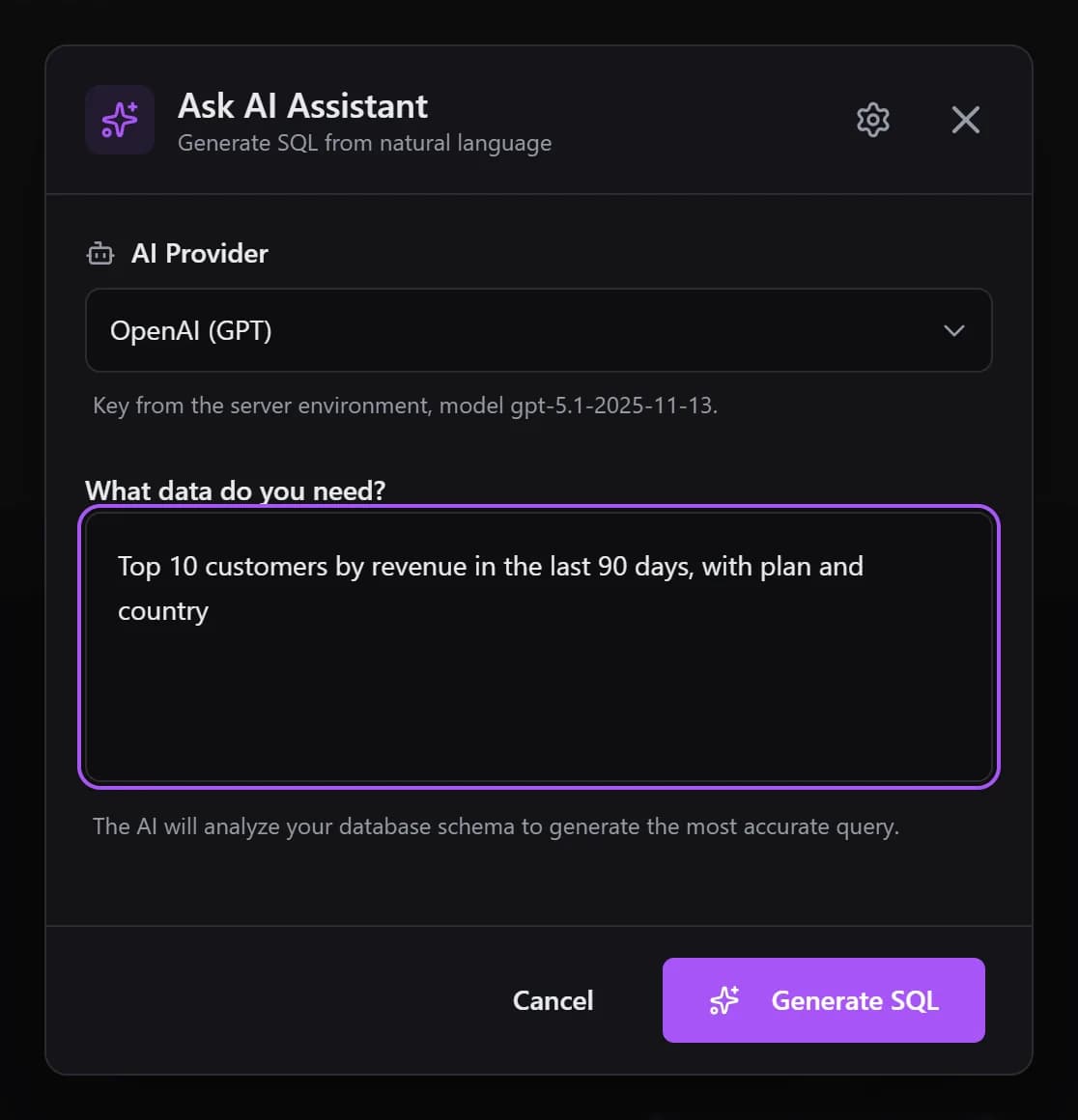
- In Ask AI Assistant, pick the AI Provider: OpenAI (GPT), Anthropic (Claude) or Google (Gemini). A provider without a key shows "(no key)".
- Type your request under What data do you need?, for example "Revenue per plan for the last 30 days".
- Click Generate SQL. The statement appears in the editor.
- Read it, then run it with Run. Safe Mode and the production confirmation apply as for any query.
Exactly What Is Sent
The QueryGlow server builds the request and sends it to the provider you picked, with your key:
- your database type (the SQL dialect),
- for the first 100 tables: each table name and each column's name and type,
- your prompt, plus QueryGlow's fixed instructions for writing SQL.
Not sent: no rows, no sample values, no query results. On PostgreSQL the column list comes from the public schema. The requests go to api.openai.com, api.anthropic.com or generativelanguage.googleapis.com, from your server.
Adding Your Key
In the app (since 1.3.0)
- In Ask AI, click the gear (AI providers).
- Per provider: paste the API key, optionally a Model, then Save.
- Test sends one small real request with the saved key and model and answers "Works. Model ...".
- Keys are stored AES-256-GCM encrypted in
data/ai-settings.jsonon your server. The browser never gets a key back; the dialog shows only the last four characters. Remove key deletes it. - No restart needed.
In .env (wins over the app)
A key or model set in the server's .env wins, and the matching field in the dialog is disabled. Use it to fix a provider for the whole install:
# .env in your QueryGlow directory (only the providers you use)
OPENAI_API_KEY=sk-...
ANTHROPIC_API_KEY=sk-ant-...
GOOGLE_API_KEY=AIza...

# optional: a different model per provider
QUERYGLOW_OPENAI_MODEL=gpt-4o-mini
Apply it by recreating the container (a restart does not read .env again):
docker compose -f docker-compose.production.yml up -d --force-recreate queryglow.env also wins over a key you enter in the app. Leave the AI key lines out or empty unless you use .env on purpose. A key saved under an earlier SESSION_SECRET shows as unreadable: remove it and paste it again.Models
| Provider | Default model | .env setting |
|---|---|---|
| OpenAI (GPT) | gpt-5.1-2025-11-13 | QUERYGLOW_OPENAI_MODEL |
| Anthropic (Claude) | claude-haiku-4-5-20251001 | QUERYGLOW_ANTHROPIC_MODEL |
| Google (Gemini) | gemini-3-pro-preview | QUERYGLOW_GOOGLE_MODEL |
Any model name the provider accepts works, set in the Model field of AI providers or in .env. Since 1.3.0 Ask AI sends no temperature, so OpenAI models that accept only their default temperature work too.
Costs and Limits
- Your provider bills the requests to your key. QueryGlow adds no fee and no markup.
- In standalone mode nginx limits Ask AI to 30 requests per minute per IP.
- The public demo blocks Ask AI and the AI providers dialog.
- Only the three providers above are supported; local models (for example Ollama) are not.
- Without a key, everything else in QueryGlow works as usual.