Data Browser
Open a connection, switch the header to Data Browser and click a table in the Tables panel (type into Filter tables... to narrow the list). The rows open in a spreadsheet style grid you can click into.
The Data Browser reopens the table you last had open on each connection (since 1.3.0). The Refresh tables and data button reloads the table list and the rows you are looking at, keeping page, sort, search and filters.
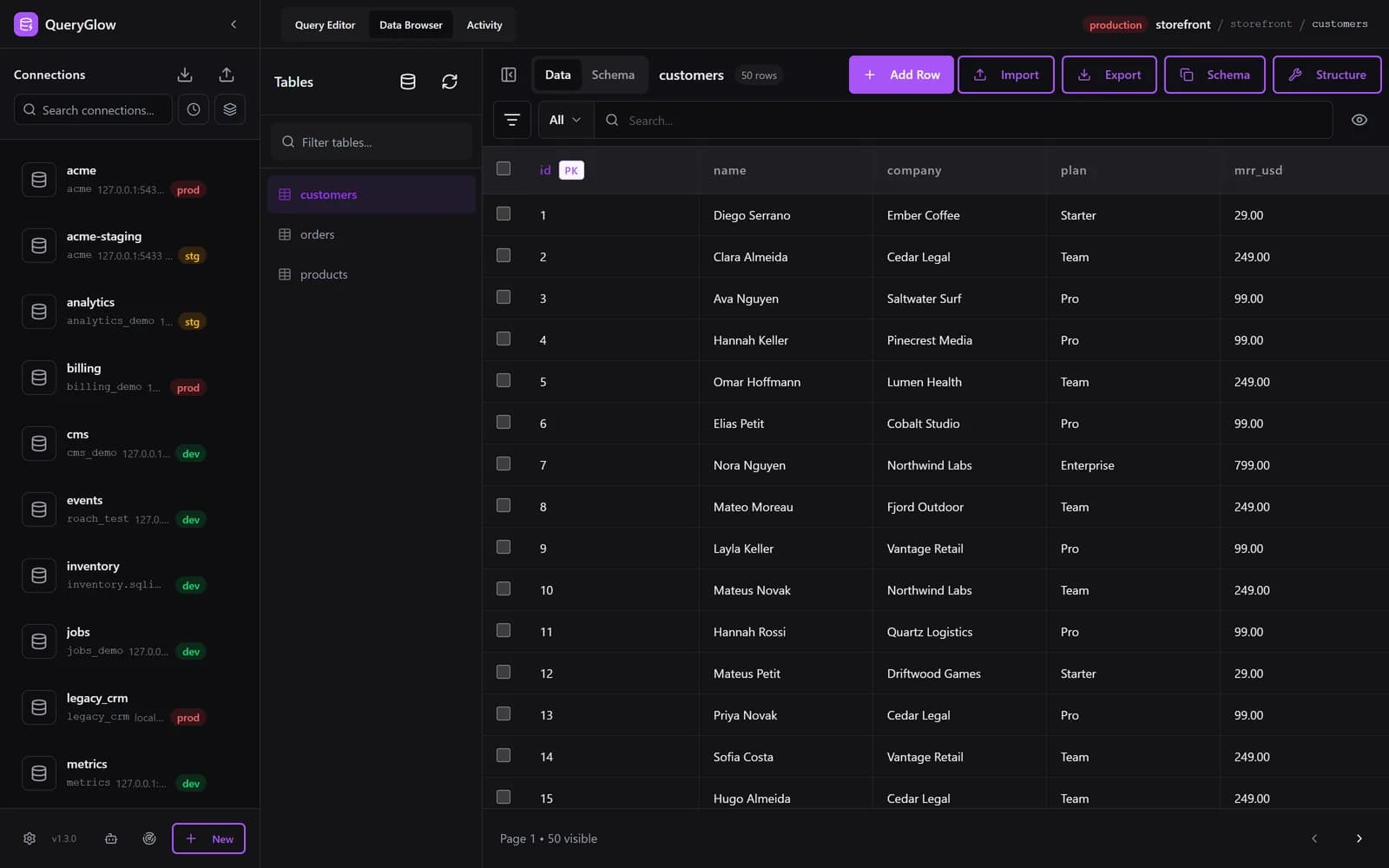
The Grid
- A checkbox column to select rows (the header checkbox selects all rows on the page), a sticky header, one line per row.
- Columns start 200 pixels wide; drag a border to resize. Toggle Columns hides columns from view only.
- A cell shows at most 512 characters; the full value is in the editor and in the export. Long values carry a document icon.
- JSON, JSONB and array values show as JSON text and can be edited as JSON text (since 1.3.0).
- NULL shows as NULL, blank or ∅, as set in Preferences; hovering always reveals NULL. Timestamps and numbers follow your display format there, and the stored value appears on hover.
Find Rows
Search
Pick All Columns or one column and type into Search.... All Columns matches the text in any column of the open table. Search combines with filters (AND).
Filters
The Filter button opens Filters: pick a column, an operator and a value, Add more rules, then Apply. Rules combine with AND; Clear removes them. The CSV export respects them.
Operators: =, ≠, >, <, Contains, Starts, Ends, Is Null, Not Null.
Sort and pages
Click a column header: ascending, descending, off. The footer reads Page 3 • 50 visible with Previous and Next; there is no total row count. Pick 25, 50, 100 or 500 rows per page in Preferences (default 50).
Pages over 100 rows
On a page with more than 100 rows, only the rows near the visible area are in the page (since 1.3.0). The browser's find in page (Ctrl+F) finds only those; use the search box, or 100 rows per page or fewer, to find a value anywhere.
Edit, Add and Delete Rows
Inline edit
Click a cell, change the value, press Enter to save or Escape to cancel. Values over 60 characters or with a line break open an editor with Read and Edit modes. Editing needs a primary key; primary key cells are not editable. Changes save to the database immediately, and there is no undo.
Add row and bulk edit
Add Row puts an empty row at the top for you to fill in. Select rows and click Edit in the bottom bar for Bulk Edit N Rows: pick one Column to update (primary keys excluded) and a New Value (empty means NULL), then Update Records.
Delete
Select rows, click Delete in the bottom bar and confirm in Confirm Deletion. On a connection marked Production the dialog shows a Production Warning, and you type DELETE to enable Delete from Production. Safe Mode does not apply to these buttons; the confirmations do. More in Environments.
CSV Import and Export
Import CSV
- Import opens Import CSV. File Encoding: UTF-8 (Standard), Western (ISO-8859-1 / Windows-1252) or Legacy Mac (MacRoman).
- Map Columns matches CSV headers to table columns by name; change any of them or pick (Skip this column).
- Import Strategy: INSERT (Add New), UPSERT (Update Existing), which needs a primary key, or REPLACE (Overwrite All), which deletes all existing rows first.
- A validation step shows valid rows, warnings and errors before anything is written.
Export CSV
Export streams the whole table from the server as CSV, with your current search and filters applied, not only the rows on screen.
Capped at 100,000 rows by default (QUERYGLOW_MAX_EXPORT_ROWS, 0 turns the cap off); a truncated export says so. Values starting with =, +, - or @ are prefixed so spreadsheets treat them as text.
Schema View
Switch the table from Data to Schema to see its Columns (name, type, attributes such as NOT NULL and UNIQUE, default), Indexes and Foreign Keys. The toolbar's Schema button copies the table's CREATE TABLE statement, and Structure opens the schema editor for column changes.
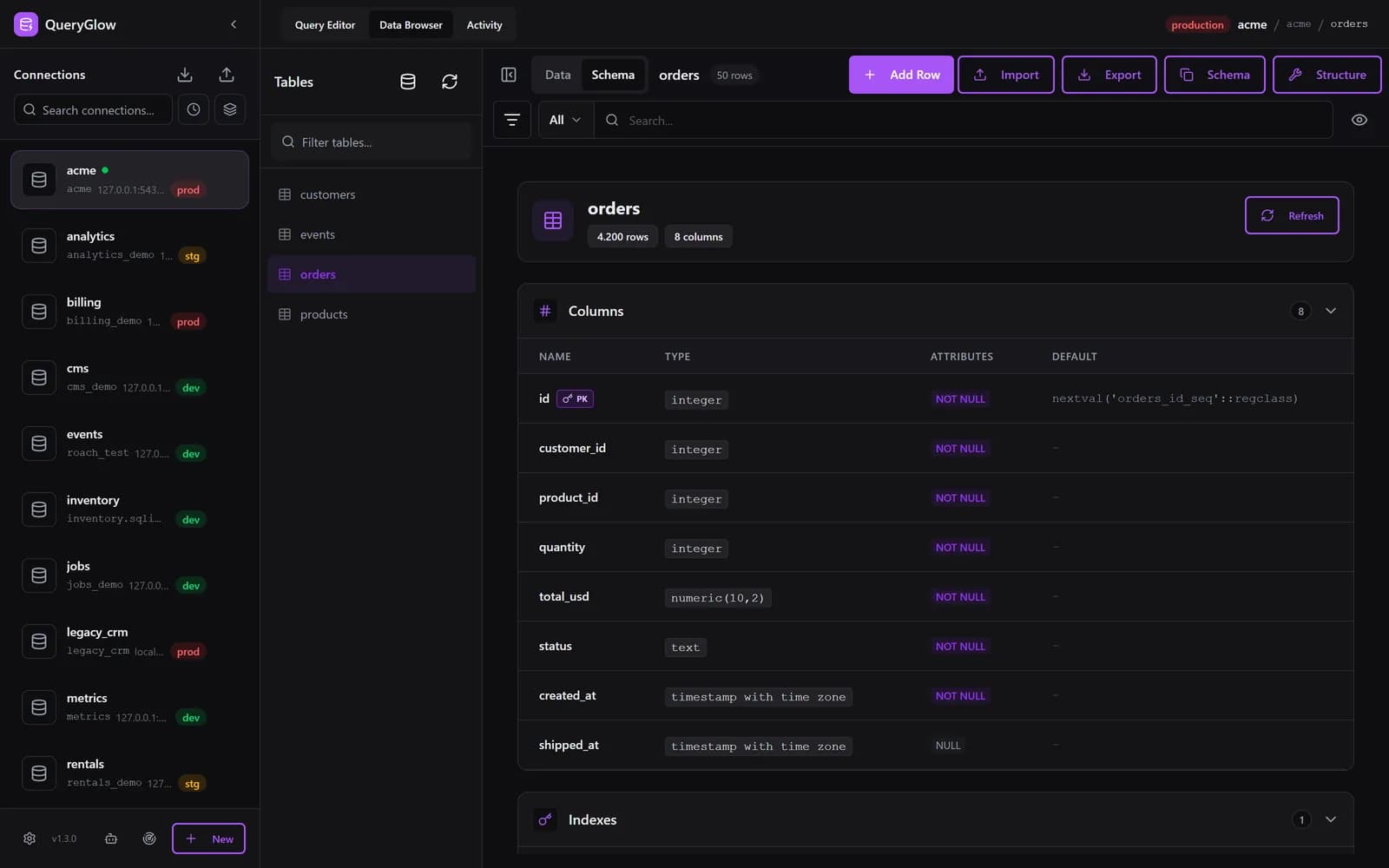
Auto Refresh
Set Auto refresh to 10s, 30s or 60s in Preferences (default Off) and the open table reloads on that timer, at the current page, sort, search and filters. The footer shows Auto refresh 30s, or Auto refresh paused while you edit a cell or a new row, have rows selected or a dialog open. A hidden browser tab skips the reload.