
Quick Answer: The psql commands you will use most:
\llists databases,\c appdbswitches to a database,\dtlists tables,\d customerdescribes a table,\dulists users,\dnlists schemas,\xtoggles expanded output and\qquits. Backslash commands only work inside psql; where a SQL equivalent exists, the sections below give it too.
This page collects the psql commands that come up every week, grouped by task, each with one short line on what it does. The examples use a sample database called appdb with a customer table and a sales schema that holds an orders table. Every command on this page ran on PostgreSQL 16 before it went into a table, except the two interactive ones, e and watch.
Connect to a database with psql
psql -h localhost -p 5432 -U postgres -d appdbThe four flags name the host the server runs on (-h), the port it listens on (-p), the role you log in as (-U) and the database to open (-d). If you leave out -p, psql uses the PGPORT environment variable or, when that is not set, the port it was built with, usually 5432.
psql "postgresql://postgres@localhost:5432/appdb"The same connection also fits into one URI of the form postgresql://user@host:port/dbname, which is handy when a tool or a config file hands you a connection string. Neither form contains a password. psql takes it from a .pgpass password file or from the PGPASSWORD environment variable, and when the server wants a password that neither of them provides, psql asks you for it. The PostgreSQL docs recommend the password file over the environment variable, because on some systems other users can read the environment of a running process.
Databases
| Command | What it does |
|---|---|
\l | Lists the databases on the server with their owner, encoding and access privileges. |
\l+ | Adds the size, default tablespace and description of each database. |
\c appdb | Connects to the database appdb and closes the previous connection. |
SELECT current_database(); | Returns the name of the database you are connected to. |
On the test server \l showed appdb, postgres and the two templates, template0 and template1. To hide the templates, add sizes and owners or see only the databases you may open, read how to list databases in PostgreSQL with SQL.
Tables and views
| Command | What it does |
|---|---|
\dt | Lists the tables visible on your search_path. |
\dt+ | Adds the persistence, size on disk and description of each table. |
\dv | Lists views instead of tables. |
\d customer | Describes the table customer: columns, types, NOT NULL, defaults, indexes and constraints. |
\d+ customer | Adds column comments, storage details and the access method. |
On the test database \dt listed only public.customer, because the sales schema is not on the default search_path. To list the tables of one schema, put the schema name and a dot in front of the wildcard:
\dt sales.* List of relations
Schema | Name | Type | Owner
--------+--------+-------+----------
sales | orders | table | postgres
(1 row)SQL queries that do the same job in any client are in the guides on how to list tables in PostgreSQL and how to describe a table in PostgreSQL.
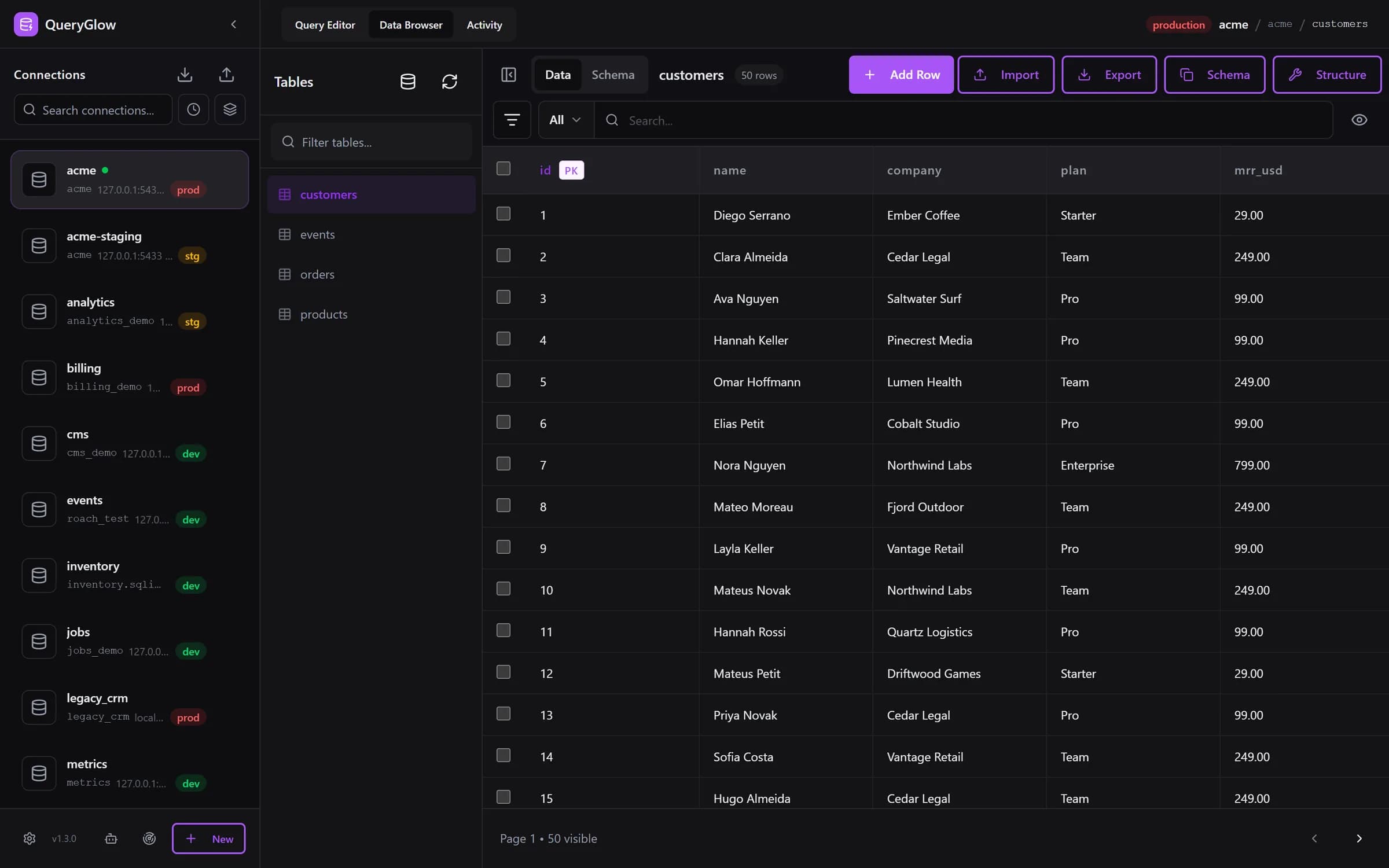
Curious what a web-based database GUI looks like?
QueryGlow runs in your browser from a server you run. Browse, query and edit PostgreSQL, MySQL, SQLite and 3 more engines. $79 once for the whole team.
See the tourUsers and roles
| Command | What it does |
|---|---|
\du | Lists the roles on the server with attributes such as Superuser and Create DB. |
SELECT current_user; | Returns the role your session runs as. |
PostgreSQL merged users and groups into roles, which is why \du lists roles. On the fresh test server it showed a single role, postgres, with Superuser, Create role, Create DB, Replication and Bypass RLS. Queries for login roles and a read-only user for your team are in the guide to list users and roles in PostgreSQL.
Schemas
| Command | What it does |
|---|---|
\dn | Lists the schemas of the current database with their owner. |
SHOW search_path; | Shows the schemas PostgreSQL searches, in order, for a name written without a schema. |
On the test database \dn listed public and sales, and the search_path was "$user", public. Why a table can exist and still not be found, and how the search_path decides where new tables land, is covered in the guide to list schemas in PostgreSQL.
Indexes, functions and sequences
| Command | What it does |
|---|---|
\di | Lists indexes together with the table each one belongs to. |
\df | Lists functions with their result type, argument types and function type. |
\ds | Lists sequences, such as the one behind an identity column. |
Like \dt, these commands show only objects you created unless you add a pattern or the S modifier. On the test database \di found three indexes on customer, \df found no functions, and \ds found customer_id_seq, the sequence behind the identity column id.
Run, time and repeat queries
| Command | What it does |
|---|---|
\timing | Turns the display of how long each statement takes on or off. |
\x | Turns expanded output on or off, which prints each row as column name and value pairs. |
\i setup.sql | Reads the file setup.sql and runs it as if you had typed it. |
\g | Sends the current query buffer to the server, so a query typed without a semicolon runs. |
\e | Opens the current query buffer, or the last query when the buffer is empty, in your editor. |
\watch 5 | Runs the query buffer again every 5 seconds until you interrupt it. |
Both \timing and \x are toggles: run them once to switch on and again to switch off. With timing on, psql prints the duration in milliseconds after every statement. Expanded output turns a one row result into this:
-[ RECORD 1 ]--+--
expanded_check | 1
Expanded output pays off for wide tables, where a normal row would wrap across the screen. The test run skipped \e and \watch 5, because both wait for you: one for your editor, the other for Ctrl+C.
Import and export CSV with \copy
\copy customer TO 'customer.csv' WITH (FORMAT csv, HEADER)
\copy customer (email, name) FROM 'new_customers.csv' WITH (FORMAT csv, HEADER)
The first line writes every row of customer, with a header row, to customer.csv. The second reads new_customers.csv into customer. On the test database the export printed COPY 2 and the import COPY 1, the number of rows each one moved.
\copy is a psql command, not SQL. psql runs a COPY on the server but reads and writes the file itself, on your machine, with your own file permissions, and needs no superuser rights. The SQL COPY command with a file name works the other way round: the server reads and writes the file on its own machine, as the operating system user it runs as. That is why \copy is the one to use when the database runs on another host or in a container. For very large files the docs note that server side COPY is more efficient, because with \copy all data has to pass through the client connection.
The import names its columns, email and name, because id is an identity column that PostgreSQL fills in itself, and created_at takes its default. A \copy command must fit on one line, since psql takes the rest of the line as its arguments.
Output, help and leaving psql
| Command | What it does |
|---|---|
\pset null '(null)' | Prints (null) in place of a null value instead of an empty cell. |
\? | Lists the psql backslash commands with a short description of each. |
\h CREATE TABLE | Shows the syntax of the SQL command CREATE TABLE. |
\conninfo | Prints the database, user, host and port of the current connection. |
\q | Quits psql. |
By default psql prints nothing for a null, which is easy to mistake for an empty string. The help from \h CREATE TABLE ends with a link to the matching page of the PostgreSQL documentation, and \conninfo is the quickest check before you run anything on a server you are not sure about.
psql commands vs SQL in a GUI
Backslash commands are a psql feature, so no GUI runs them. Every SQL query on this page works in any client, including the QueryGlow Query Editor with autocomplete for table and column names. If you are choosing a client, the best PostgreSQL client comparison covers desktop, CLI and web options.
Try QueryGlow: a self-hosted database GUI your team opens in the browser, $79 once for the whole team. Try the live demo (read-only, AI switched off, no signup).
Tags:
Built by an engineer. The app sends no telemetry.
Your database, without the dependencies.
QueryGlow is web-based and self-hosted, source code included. Open a URL from any device, your rows never leave your server. $79 once.
“Beautiful interface and very intuitive.”
Jean-Francois, Mildor Violon, verified customer “I was looking at DBeaver and yours looked a little easier for what I was looking for.”
Mike, verified customer
Stripe checkout. You'll enter your GitHub username for the repo invite. No refunds, so try the read-only demo first.
$79 one-time. Self-hosted. No subscription.